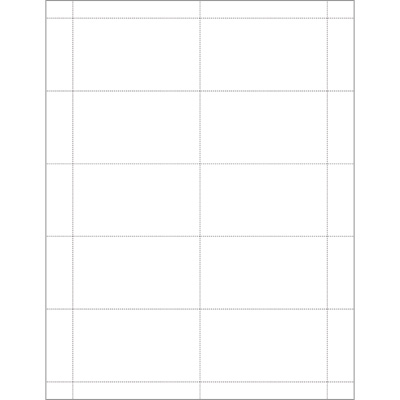

Canva Template
Portrait-Design Now
How to use Canva template – Must Read

MR-Label’s Online Design Tool
Design Now
How to use MR-Label’s Online Design Tool

Normal Microsoft Template
Portrait – Download
How to use Normal MS Word template

Adobe PDF Template
Portrait – Download
How to use PDF template
LibreOffice Template
Portrait – Download
How to use LibreOffice template
Free Web APPs
Download
How to use web app

Mail Merge Word Template
Word Template ( for Windows )
Sample Excel ( for Windows)
How to use mail merge to create bulk labels from Excel spreadsheet
Template Specifications
| Sheet Size: | 215.9×279.4mm | Labels Per Sheet: | 10 |
| Number Across | 2 | Number Down | 5 |
| Label Width: | 88.9mm | Label Height: | 50.8mm |
| Top Margin: | 12.7mm | Bottom Margin: | 12.7mm |
| Left Margin: | 19.05mm | Right Margin: | 19.05mm |
| Vertical Spacing: | 0mm | Vertical Pitch: | 50.8mm |
| Horizontal Spacing: | 0mm | Horizontal Pitch: | 88.9mm |
When I did my work online it didn’t print the correct size of the template. I have the 313 and I was making business cards.
Hi,
Sorry for the inconvenience. The issue is usually caused by the printer scaling settings.
For MR313 business cards, we recommend the following steps:
Download the design as a PDF file.
When printing, make sure the scaling option is set to “Actual Size” or 100%.
Please do not select “Fit to Page” or “Shrink Oversized Pages,” as this can change the template size and cause alignment problems.
You can also try printing one test page on plain paper first to check the alignment before using the label sheets.
If the size still looks incorrect, feel free to send us a screenshot of your print settings or the printed result, and we’ll help you check it further.